
Fire Away: The Spark Behind Remote Triggering with Triggertrap
October 13, 2014
There are many reasons to remotely trigger a camera, ranging from selfies to time-lapse sequences, and remote triggers can now be as simple as an infrared trigger (that you point at the front of the camera to capture an image) or a wireless trigger operated from a smartphone. Canon and Nikon photographers have several of these sophisticated remote triggering options available for their cameras, but they are not cheap and require iOS mobile devices for remote triggering.
Triggertrap, a U.K. company brought to life through Kickstarter, has created a newfound flexibility to the world of remote triggering. The company supports a wide array of camera models from many manufacturers and provides triggering from Android as well as iOS devices.
The Triggertrap Mobile consists of a diminutive hardware device, the Triggertrap Mobile Dongle 3, which attaches to a smartphone or tablet and costs less than $20. A cable compatible with your camera model is also needed to connect the dongle to your camera and won’t set you back more than $15. Kits containing the dongle and cable are also available.
The Android and iOS apps are free downloads from their respective app stores. Although designed for phones, the apps works equally well on Android and iOS tablets, which is how I used the system. Triggertrap can also wirelessly trigger your camera for many of its available functions (more on that below).
For iOS devices, there are 17 operating modes: simple cable release, quick release, press and hold, press and lock, timed release, self-timer, time-lapse, time-warp, distance-lapse, star trail, bulb ramping, sound sensor, vibration sensor, motion sensor, peekaboo (facial recognition), long exposure HDR, and long exposure HDR time-lapse. Because of the differences in operating systems, the Android app loses the vibration sensor, motion sensor and peekaboo modes. Both apps include a neutral density filter calculator and sunrise and sunset times. There is also the aforementioned wireless mode and instructions for setup.
Using Triggertrap is remarkably straightforward. With your camera set to manual focus and the app downloaded to your mobile device, you attach the dongle to both and turn them on. Navigate to the app and select an operating mode. Focus the camera and set the shutter speed and aperture if needed for the chosen mode. Enter any information needed by the mode in the app, and, in most modes, press a large red button on your device’s screen to activate the camera.
Some of the modes (such as star trails, bulb ramping and the HDR modes) require you to set the shutter speed to bulb. A small light bulb icon displays on the iOS device screen as a reminder to set your camera accordingly. I’m told a similar reminder is coming to Android in the future.
For some modes, such as time-lapse and star trails, it’s best to mount your mobile device onto your camera or tripod to prevent wind or vibrations from causing misalignment. There are a number of these supports available, and Triggertrap is promising one of their own design later this year. Many of the other modes are designed for operation with your mobile device held in your hand.
I tested nearly all of the operating modes, and they all worked exactly as expected. When running for long time-lapse and star trail sequences, the Triggertrap dongle and app seemed to have little impact on the battery life of my cameras or tablets.
I also tested the wireless remote mode. This required two mobile devices: one as the master to act as the controller and one as a slave attached to the camera. To mix things up, I used an iPad as master and a Nexus 7 tablet as slave. In wireless operation, the modes that require the shutter to be set on bulb—star trail, bulb ramping, three of the cable release modes, and the two HDR modes—are available. I found that I lost the connection when attempting to use any of these modes during a wireless session.
Instructions for connecting both master and slave to an existing wireless network are included in the app. It is also possible to create an ad hoc network if both master and slave are iOS devices. Once each device sees the other, you’re in business. Of course, if one of the devices goes to sleep while shooting a long sequence of images, the connection is lost and you must reconnect to the network.
What the Triggertrap does not do during either wired or wireless operation is transfer the captured image to your mobile device. And, while you can use any available metering mode on your camera, you must set the mode and manually focus the camera before using Triggertrap. I found these to be minor inconveniences given the features available and the low cost of the Triggertrap compared to systems that offer these features.
As of this writing, Triggertrap supports more than 300 camera models from 15 manufacturers. The full list is available from the Triggertrap website.
Related Articles
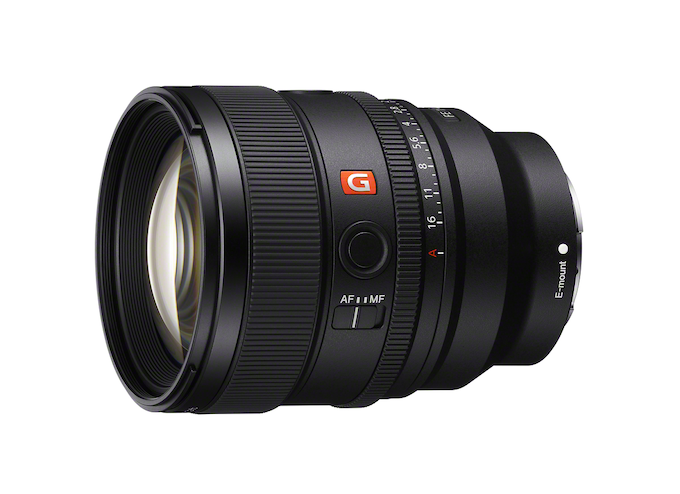
Sony’s Nex-Gen FE 85mm f/1.4 G Master II Prime Lens
September 24, 2024
For many photographers, a fast, 85mm prime lens is a dream lens. It’s perfect for a variety of portrait styles and can produce the dreamy bokeh that is the hallmark of large aperture glass. The latest 85mm prime on the market is the second generation Sony 85mm f/1.4 G-Master II. The original was introduced eight years ago, to meet (or...
More »
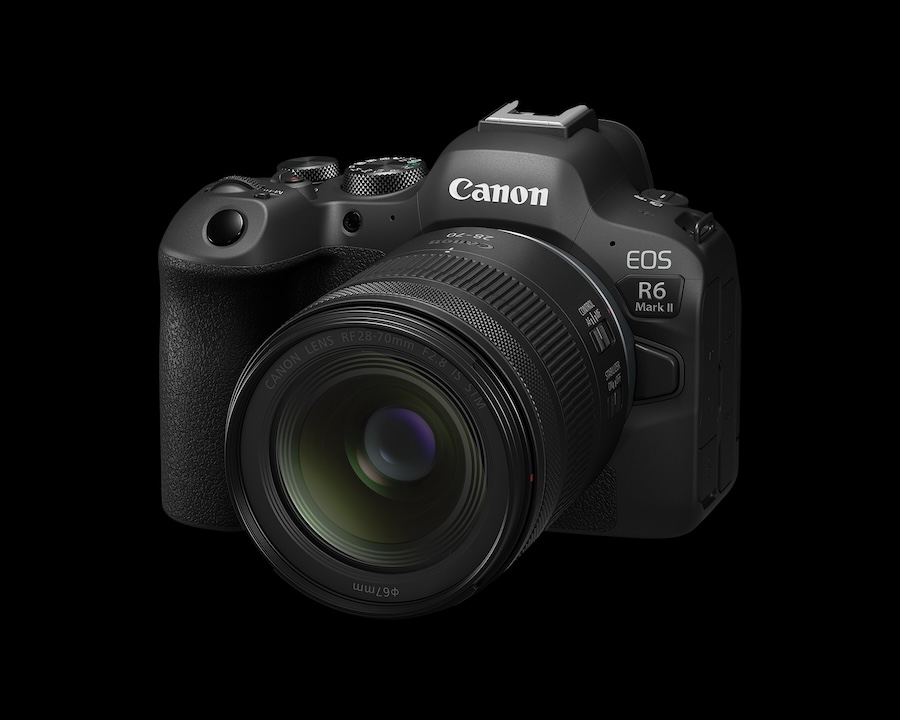
Canon Announces New RF28-70mm f/2.8 Zoom Lens
September 19, 2024
Canon released a new standard zoom with its RF28-70mm f/2.8 IS STM lens. This lens provides a versatile focal range similar to the RF24-70mm f/2.8 L USM lens but at less than half the price: $1,099 vs. $2,499. Granted the L designation of the older lens is, at least partly, responsible for the price difference but the new 28-70mm will...
More »

Canon Launches Two Pro-Level Cameras
July 18, 2024
Canon has officially launched two new, pro-level R-series mirrorless cameras: the 24-megapixel EOS R1 with its high speed performance and the 45-megapixel, high resolution EOS R5 Mark II. Not surprisingly, the R1 with its 40fps burst shooting will appeal to sports photographers and photojournalists—hence its built-in Wi-Fi and Ethernet. Of course, we expect to see this camera in action at...
More »